

Gmail booking cards are the summary panels Gmail can show at the top of a booking confirmation e-mail: the flight route and times, the hotel address and dates, or the tour start time and meeting place, with the booking reference one tap away. Without them, a confirmation is just another message that sinks into the inbox, and travelers end up searching for a PNR, a hotel address or a pick-up time at the worst possible moment.
Gmail builds these cards from structured data that you embed in the HTML of the e-mail, using the schema.org vocabulary. The same data lets Google Calendar add the trip automatically and lets other Google products surface it in context. The visible e-mail does not change at all.
This guide explains what the markup is, what it can and cannot deliver, the exact technical steps, three complete JSON-LD examples, how to test, how to register your sending address with Google, what a review can reject and why, and how PHPTRAVELS handles the markup for travel businesses. Everything technical is checked against Google’s official documentation, which is linked where it is relevant.
In this guide
- What Are Gmail Booking Cards (Gmail Email Markup)?
- What You Get: Benefits and Deliverables
- How Gmail Email Markup Works (Technical Overview)
- Requirements Before You Start
- Step-by-Step: Add Booking Markup to Your E-mails
- Code Examples: Flight, Hotel and Tour JSON-LD
- How to Test Your Markup Before Applying
- How to Register Email Markup with Google (Get Your Sender Approved)
- What an Approved Booking E-mail Looks Like
- Common Mistakes to Avoid
- How PHPTRAVELS Handles Gmail Booking Cards Out of the Box
- Conclusion: Make Your Booking E-mails Work Harder
- Frequently asked questions
What Are Gmail Booking Cards (Gmail Email Markup)?
Gmail booking cards are the visible result of Gmail email markup: schema.org email markup, which is structured data placed in the HTML of an e-mail so that Gmail can understand the message instead of only displaying it. Google’s email markup overview explains that Gmail, Google Calendar, Google Search and the Google app all use this data. JSON-LD is the format most teams choose, and Google’s getting-started guide confirms that Gmail supports both JSON-LD and Microdata.
For travel, the relevant reservation types are:
- FlightReservation for flights, described on schema.org.
- LodgingReservation for hotels and other stays (schema.org definition).
- EventReservation for tours, activities, attractions and ticketed events (schema.org definition).
- RentalCarReservation, TrainReservation and BusReservation for ground transport. Google lists car rental, train and bus among its Gmail highlights.
- Order for purchased products such as an eSIM or a visa service.
The markup is invisible. Travelers see the same e-mail design as before; Gmail reads the hidden data and decides what to display. That is why it is safe to add to an existing template, and why it is also easy to forget when a template is redesigned.
What You Get: Benefits and Deliverables
The value of the markup is practical. It puts the facts a traveler needs in a predictable place and connects the booking to the tools they already use. The table below summarizes what each feature does for the traveler and for your business.
| Feature | What the traveler sees | Business value |
|---|---|---|
| Booking summary card | A card at the top of the e-mail with the key details of the reservation | The confirmation stays useful after the first read |
| Flight details | Airline, flight number, airports and departure and arrival times | Fewer questions about itinerary basics |
| Hotel details | Property name, address, check-in and check-out dates | Guests arrive with the right address and dates |
| Google Calendar entry | The trip appears in the calendar automatically for supported types, according to the user’s settings | Fewer missed departures and late arrivals |
| Check-in and manage buttons | Buttons built from checkinUrl and modifyReservationUrl | Self-service changes instead of support tickets |
| Google Search and app surfaces | Trip details can appear in Google products that use the same data | Your brand stays attached to the booking |
| Fewer “where is my booking” requests | The reference and details are easy to find | Lower support load and more trust |
Teams often ask how to add a booking to Google Calendar automatically: with valid markup and a registered sender, Gmail can do it for supported reservation types. Be realistic about the outcome, though. Google decides what is shown, and the features vary by reservation type, language and region. Google’s overview lists Calendar support for flight, event, hotel and restaurant reservations, so a rental car or train e-mail may get a highlight card but not a calendar entry. Nothing here is guaranteed, and a correct markup block only makes a card possible. For another way Google can surface your inventory, see our guide to Google Flights integration for travel websites.
How Gmail Email Markup Works (Technical Overview)
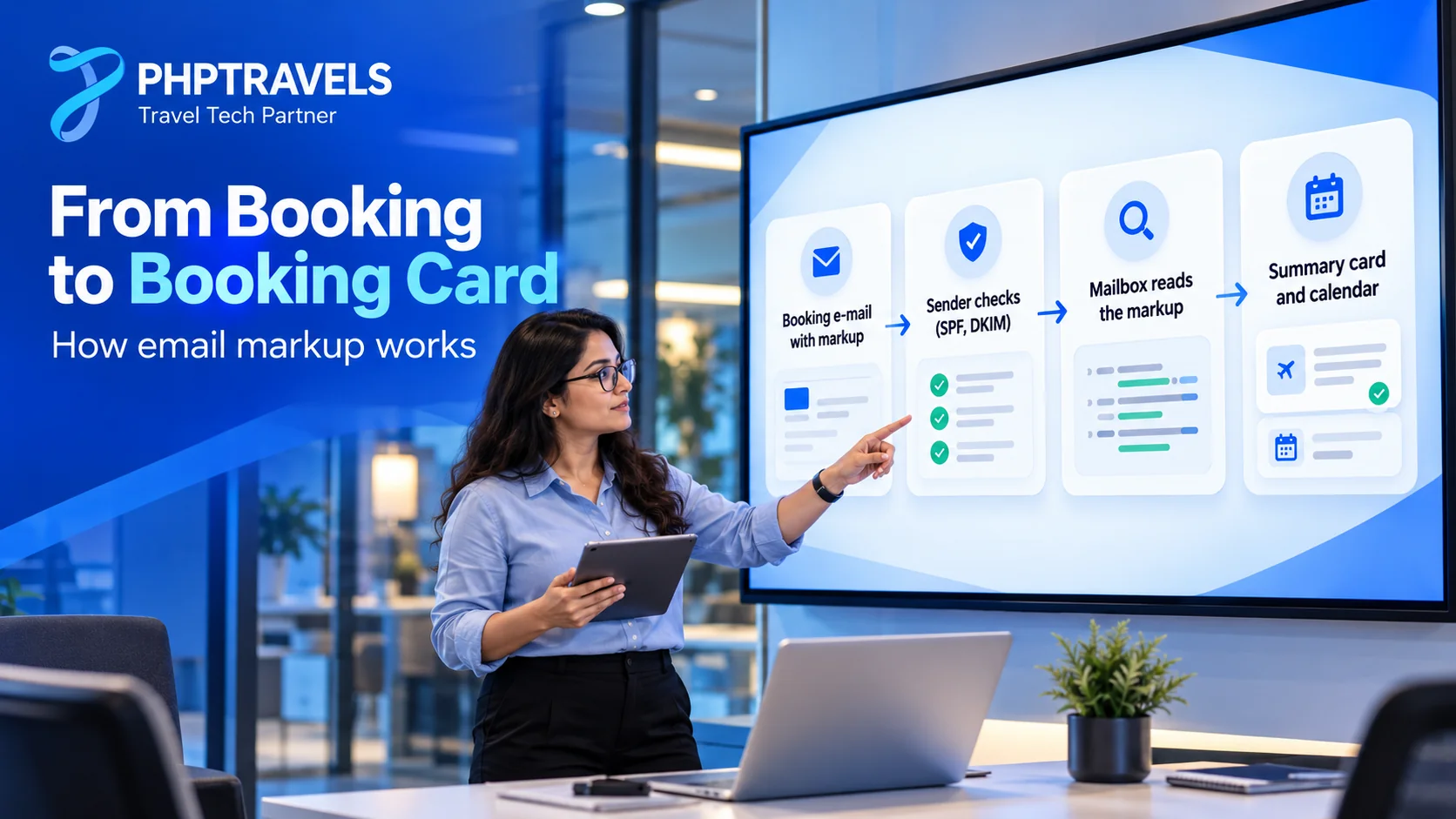
Gmail structured data follows a simple flow with five steps. Your booking system sends the confirmation e-mail, and the HTML part contains a <script type="application/ld+json"> block. Gmail then checks that the message is authenticated and that the sender is registered, parses the markup, and finally shows a card, a calendar entry or a search result when it chooses to.
Where the block goes. Put it in the HTML part of the message. Google’s examples place the script inside the <body>, and the block can sit anywhere there. The plain-text part is never parsed, so markup placed only in a text alternative does nothing.
Date-times. Google expects ISO 8601 date-times, as described in its date-time formatting reference. A value such as 2026-11-20T10:15:00+05:00 carries the local time and the offset, so a departure at Lahore and an arrival at Dubai are each correct in their own zone. Calendar entries depend on these offsets, so never send a local time without one for flights or events.
Airport codes. The airline and airport IATA codes identify the exact carrier and airport even when names are spelled differently across suppliers. If you need a quick reference while mapping supplier data, a public airline code directory is handy.
Requirements Before You Start
Markup alone does not earn a card. Google checks the sender as well. The requirements below come from the registration guidelines and the Gmail email sender guidelines.
- Authentication. Send mail authenticated with SPF or DKIM, and make sure the authenticated domain matches the domain of your
From:address. Add DMARC as well; Google requires SPF, DKIM and DMARC for senders of 5,000 or more messages a day to Gmail accounts. - A static sender address. Use a fixed address such as
bookings@yourdomain.com, not a personal mailbox and not an address that changes between sends. - Sender quality. Keep spam complaints very low, use TLS, and maintain valid forward and reverse DNS (PTR) records for your sending IPs.
- Transactional mail only. Markup belongs on real booking confirmations, not on promotional newsletters.
- Sending history. Google asks for a consistent history of sending a high volume of mail from your domain to Gmail for a period of weeks. Check the current wording on Google’s registration page rather than relying on a number quoted elsewhere.
You can start testing before any of the history requirements are met, because Google allows self-testing by sending from a Gmail address to the same address. Registration is only needed when you want the markup to work for your customers.
Step-by-Step: Add Booking Markup to Your E-mails
Step 1: Map your booking data to schema.org properties
Start with a field map, which is the core of any travel booking email schema. Every required property must come from real booking data. The tables list the required fields for each type, taken from Google’s reference pages for FlightReservation, hotel reservations and EventReservation.
FlightReservation
| Property | Status | Notes |
|---|---|---|
reservationNumber, reservationStatus | Required | Booking reference and current status |
underName.name | Required | Passenger name |
reservationFor.flightNumber | Required | Flight identifier |
reservationFor.airline.name, .iataCode | Required | Carrier name and two-letter code |
departureAirport.name, .iataCode | Required | Departure airport |
reservationFor.departureTime | Required | ISO 8601 with offset |
arrivalAirport.name, .iataCode | Required | Arrival airport |
reservationFor.arrivalTime | Required | ISO 8601 with offset |
modifiedTime, checkinUrl, modifyReservationUrl | Recommended | Adds buttons and freshness for cards |
LodgingReservation
| Property | Status | Notes |
|---|---|---|
reservationNumber, reservationStatus, underName.name | Required | Reference, status, guest name |
reservationFor.name | Required | Property name |
reservationFor.address | Required | PostalAddress with streetAddress, addressLocality, addressRegion, postalCode, addressCountry |
reservationFor.telephone | Required | Property phone number |
checkinDate, checkoutDate | Required | Date-times with offset |
modifiedTime, modifyReservationUrl | Recommended | Manage-booking link |
EventReservation (tours, activities, attractions)
| Property | Status | Notes |
|---|---|---|
reservationNumber, reservationStatus, underName.name | Required | Reference, status, ticket holder |
reservationFor.name | Required | Event or tour name |
reservationFor.startDate | Required | Start date-time with offset |
reservationFor.location | Required | Place with a name and a full PostalAddress |
modifiedTime, modifyReservationUrl, performer (name, image) | Recommended | Improves cards and search answers |
Step 2: Generate the JSON-LD
Generate the block from your booking record in code, never by hand. The three working examples in the next section show a flight, a hotel and a tour. Each one is a complete, valid starting point.
Step 3: Insert it into the e-mail template
Add the script to the HTML template of the confirmation e-mail, inside the body, so it renders with the same data as the visible text. One script block can contain one reservation object, or a JSON array of several; Google’s own multi-segment example uses an array. Create one FlightReservation object per flight segment, and one per passenger when you want each passenger’s name on the card.
Step 4: Handle edge cases
- Multi-segment and return flights: one
FlightReservationper segment, each with its own times and airports. - Missing data: never send a required field empty. If a segment lacks required data, leave that whole reservation out; incomplete markup fails validation.
- Cancellations: send the same markup with
reservationStatusset tohttp://schema.org/ReservationCancelled. - Status values:
ReservationConfirmed,ReservationPendingandReservationCancelled. Google’s reference examples write the confirmed value ashttp://schema.org/Confirmed, so run your exact value through the tester before launch. - Places without postal codes: the address fields are required, so supply the best verified value your supplier provides rather than inventing one.
- No check-in time from the supplier: use a documented default check-in time only if the property confirms it; otherwise omit the reservation.
Code Examples: Flight, Hotel and Tour JSON-LD
The three examples below are complete and use sample values. Replace every sample value with real booking data; never ship placeholder values.
Flight (FlightReservation)
The reference number, passenger, airline code, airports and ISO 8601 times with offsets are the required core. modifiedTime, checkinUrl and modifyReservationUrl add the recommended buttons and freshness signal.
<script type="application/ld+json">
{
  "@context": "http://schema.org",
  "@type": "FlightReservation",
  "reservationNumber": "PK4X9Q",
  "reservationStatus": "http://schema.org/ReservationConfirmed",
  "underName": { "@type": "Person", "name": "Sara Ahmed" },
  "reservationFor": {
    "@type": "Flight",
    "flightNumber": "301",
    "airline": { "@type": "Airline", "name": "Pakistan International Airlines", "iataCode": "PK" },
    "departureAirport": { "@type": "Airport", "name": "Allama Iqbal International Airport", "iataCode": "LHE" },
    "departureTime": "2026-11-20T10:15:00+05:00",
    "arrivalAirport": { "@type": "Airport", "name": "Dubai International Airport", "iataCode": "DXB" },
    "arrivalTime": "2026-11-20T12:30:00+04:00"
  },
  "modifiedTime": "2026-10-17T09:00:00+05:00",
  "checkinUrl": "https://example.com/booking/PK4X9Q",
  "modifyReservationUrl": "https://example.com/booking/PK4X9Q"
}
</script>
Hotel (LodgingReservation)
The hotel needs a complete PostalAddress and a telephone number, and the check-in and check-out values are date-times with the hotel’s own offset.
<script type="application/ld+json">
{
  "@context": "http://schema.org",
  "@type": "LodgingReservation",
  "reservationNumber": "HTL-778899",
  "reservationStatus": "http://schema.org/ReservationConfirmed",
  "underName": { "@type": "Person", "name": "Sara Ahmed" },
  "reservationFor": {
    "@type": "LodgingBusiness",
    "name": "Conrad Los Angeles",
    "address": {
      "@type": "PostalAddress",
      "streetAddress": "100 South Grand Avenue",
      "addressLocality": "Los Angeles",
      "addressRegion": "CA",
      "postalCode": "90012",
      "addressCountry": "US"
    },
    "telephone": "+1 213-349-8585"
  },
  "checkinDate": "2026-11-24T15:00:00-08:00",
  "checkoutDate": "2026-11-26T12:00:00-08:00",
  "modifyReservationUrl": "https://example.com/booking/HTL-778899"
}
</script>
Tour or activity (EventReservation)
A tour is an event with a start time and a location. The full address is what allows a calendar entry, and performer is recommended for richer cards.
<script type="application/ld+json">
{
  "@context": "http://schema.org",
  "@type": "EventReservation",
  "reservationNumber": "TR-55120",
  "reservationStatus": "http://schema.org/ReservationConfirmed",
  "underName": { "@type": "Person", "name": "Sara Ahmed" },
  "reservationFor": {
    "@type": "Event",
    "name": "Dubai Frame Entry Ticket",
    "startDate": "2026-11-21T09:00:00+04:00",
    "endDate": "2026-11-21T11:00:00+04:00",
    "location": {
      "@type": "Place",
      "name": "Dubai Frame",
      "address": {
        "@type": "PostalAddress",
        "streetAddress": "Zabeel Park Gate 3",
        "addressLocality": "Dubai",
        "addressRegion": "Dubai",
        "postalCode": "00000",
        "addressCountry": "AE"
      }
    },
    "performer": { "@type": "Organization", "name": "Your Company", "image": "https://example.com/logo.png" }
  },
  "modifiedTime": "2026-10-17T09:00:00+04:00",
  "modifyReservationUrl": "https://example.com/booking/TR-55120"
}
</script>
Note: replace all sample values with real booking data. Never ship placeholder values such as a postal code of 00000; if the real value is unknown, leave the reservation out.
How to Test Your Markup Before Applying
Test in two stages. First validate the structure, then verify the real end-to-end result.
1. Email Markup Tester. Google’s Email Markup Tester is still available at the time of writing. Paste the full HTML of the e-mail, click Validate, and fix every error until the result shows no errors. Treat each missing required property as a blocker, and add the recommended ones as well. The testing page also describes the Structured Data Markup Helper for learning how to mark up an e-mail.
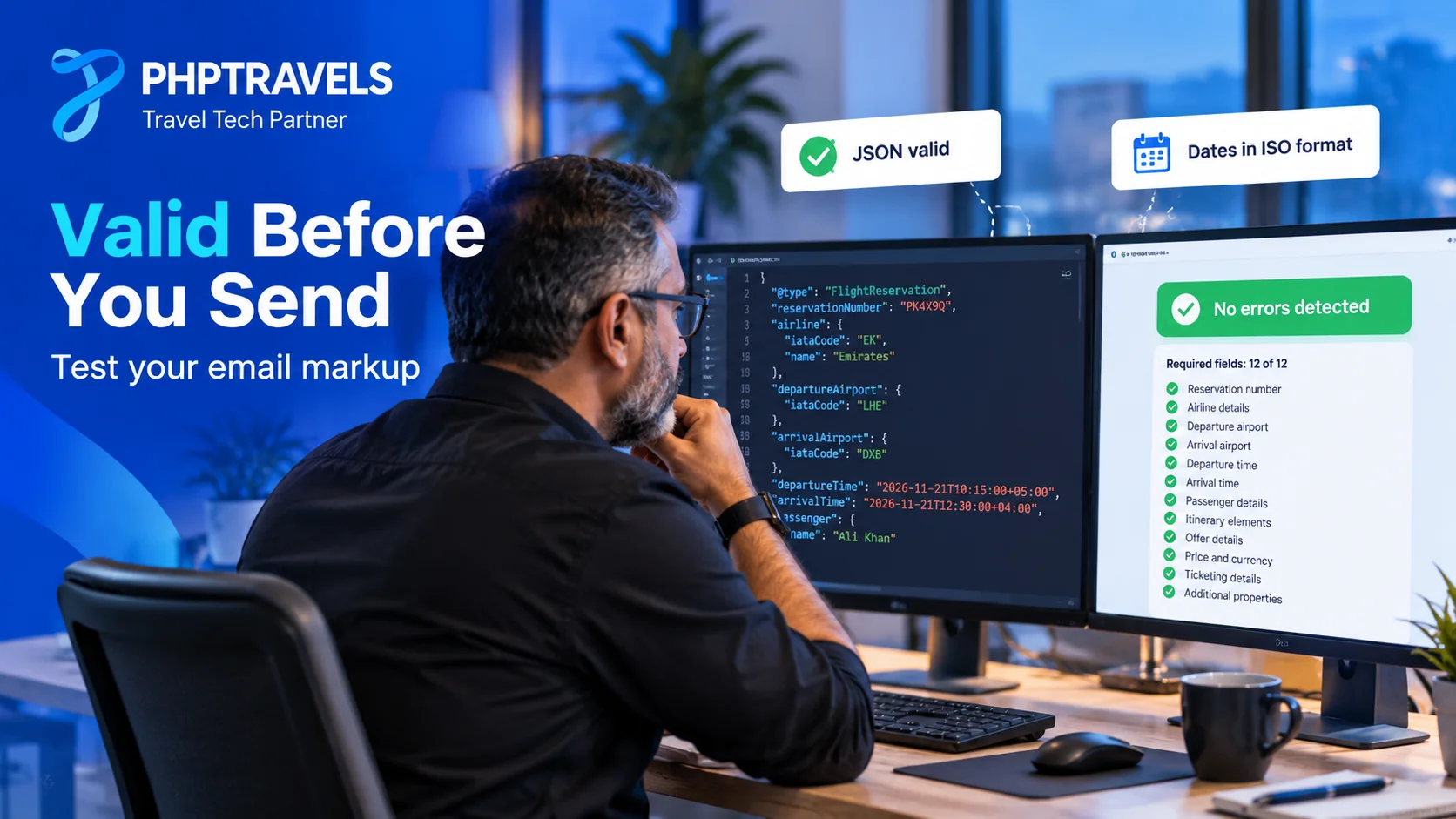
2. Self-test from production. Send the real e-mail from your production server to a Gmail address. Google’s testing page explains that self-testing requires the sender and recipient to be the same account, and that SPF or DKIM authentication is still required. Check that the card and the calendar entry appear.
Common tester errors and fixes
| Error | Fix |
|---|---|
Missing iataCode | Read the airline or airport code from supplier data and send it in every segment |
| Date-time “unrecognized” (date without time) | Send ISO 8601 date-times with an offset, for example 2026-11-20T10:15:00+05:00 |
addressRegion or postalCode missing | Always send a full PostalAddress; omit the reservation if you cannot |
Invalid property (for example starRating on LodgingBusiness) | Remove properties that Gmail does not support for that type |
| Event not added to Calendar | Send a start date-time with an offset and a full address, and check that the sender is registered |
How to Register Email Markup with Google (Get Your Sender Approved)
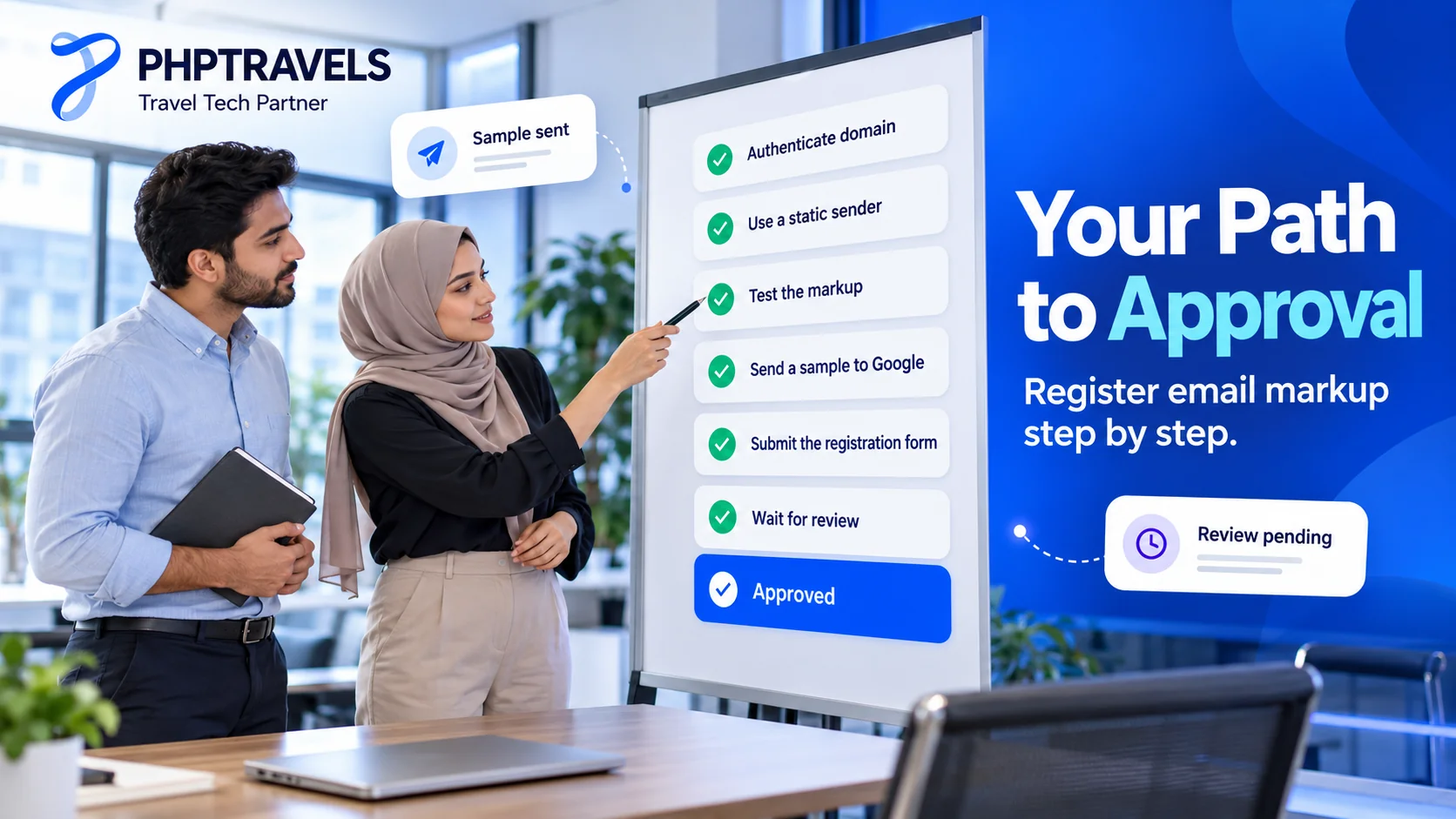
To register email markup with Google, you register the sender. Registration is how Google decides that your sender is trustworthy enough to show cards to your customers. The process follows Google’s Register with Google page, so read the current version before you start.
- Pass the checks. Your markup passes the tester without errors and you meet the requirements listed above.
- Send a real sample. From your production servers, or a server with similar DKIM, SPF,
From:andReturn-Path:headers, send an e-mail that contains the markup toschema.whitelisting+sample@gmail.com. Send it directly. Gmail removes markup when a message is forwarded, and a blank or test message without a schema is discarded. - Fill in the form. Complete the registration form linked from Google’s page with your sender address, the type of markup and your contact details.
- Wait for the review. Google’s review team replies by e-mail. Google does not publish a guaranteed review time, so allow generous time and avoid resending the same sample repeatedly.
- If it is rejected, the reply lists the criteria that failed, for example that events are not added to Calendar automatically, that required properties such as
iataCodeare missing, or that recommended fields likecheckinUrl,modifiedTimeandmodifyReservationUrlare absent. Fix the problems, send a new sample toschema.whitelisting+sample@gmail.com, and reply to the review e-mail to say what you changed.
A short reply to the review team keeps the thread clear. Adapt the sample below to your own details:
Subject: Re: Email markup registration - bookings@yourdomain.com

Hello Email Markup Review Team,

Thank you for your feedback on our sample from bookings@yourdomain.com.
We have corrected the issues you listed: we now send the airline and airport
iataCode values in every flight segment, and we added modifiedTime and
modifyReservationUrl. A new sample was sent today to
schema.whitelisting+sample@gmail.com directly from our production server.
Please let us know if anything else is needed.

Kind regards,
[Name], [Company]
Tip: keep your sender address, sending domain and markup stable after approval. Changing the sender address means registering the new address again.
What an Approved Booking E-mail Looks Like
Once a sender is approved and the markup is valid, Gmail can show a booking confirmation card above the message body. The exact layout is Google’s decision and changes over time, so the descriptions below are general.
- Flight: the airline, flight number, route, departure and arrival times and the booking reference, with buttons such as check-in or manage booking when the matching URLs are present.
- Hotel: the property name, address, check-in and check-out dates and a way to get directions.
- Event or tour: the name, date, time and place, with the option to add it to the calendar.
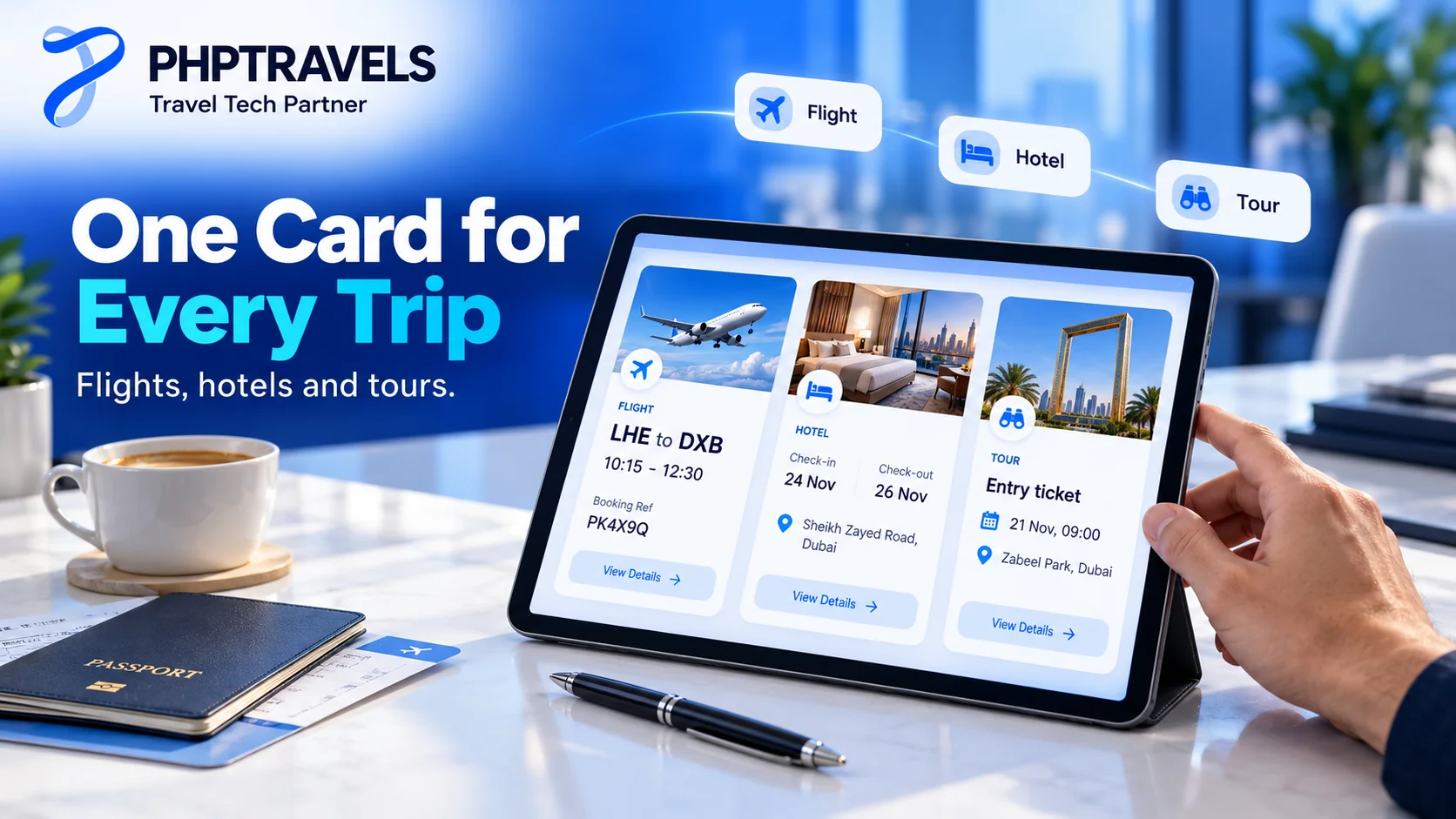
For supported types, Google’s Events from Gmail feature adds the reservation to Google Calendar automatically, depending on the user’s Gmail and Calendar settings. The illustration below is a generic mock-up, not a Google screenshot.

Common Mistakes to Avoid
- Forwarding the sample. Forwarding strips the markup and the authentication. Send the sample directly.
- A changing no-reply address. Registration is tied to a stable sender address.
- Misaligned authentication. The SPF or DKIM domain must match the
From:domain. - Empty required fields. One empty required property can invalidate the reservation. Omit the reservation instead.
- Local times without a zone. Events and flights need an offset for correct calendar entries.
- Pending bookings marked confirmed. The status must reflect the real state of the booking.
- Marketing content in transactional mail. Keep promotions out of confirmations. If you also run campaigns, handle them separately, for example with a plan like our guide to WhatsApp marketing for travel businesses.
- Invalid JSON. A trailing comma or an unescaped quote breaks the block. Validate it automatically in your build.
- Markup only in the plain-text part. Gmail reads the HTML part.
How PHPTRAVELS Handles Gmail Booking Cards Out of the Box
Writing and maintaining this markup for every booking type is repetitive work, which is why it belongs in the booking platform. PHPTRAVELS booking e-mails already include schema.org JSON-LD for flights, hotels, tours and Umrah packages (as event reservations), cars and transfers, buses, trains, ferries and cruises, plus order markup for eSIM and visa products. If you want to see the modules behind this, start with the flights module and the hotels and stays module.
The required fields are filled from the booking itself: the airline IATA code, airports and times for flights, and full hotel and event addresses. Segments that lack required data are left out automatically, and the confirmed, pending or cancelled status follows the booking. The same booking data also feeds the rest of the platform, which you can see on a broader feature overview of a full booking platform.
The software cannot do everything for you. As the site owner you still need to:
- authenticate your sending domain with SPF, DKIM and DMARC;
- use a static sender address;
- test the real e-mails; and
- register your sender with Google once.
Approval is granted by Google to each sending domain, not to a software vendor, so registering your own sender is a step you take. To see the booking e-mails in action, try the live demo, or contact the PHPTRAVELS team with questions about your setup.
Conclusion: Make Your Booking E-mails Work Harder
Gmail booking cards turn a routine confirmation into a clear, actionable summary, and the steps to earn them are well defined:
- map your booking data to the required schema.org properties;
- generate valid JSON-LD with ISO 8601 date-times and embed it in the HTML part;
- authenticate your domain and keep a static sender address;
- test with the Email Markup Tester and with a real self-test; and
- send a sample to Google, complete the registration form and fix any rejection reasons.
Getting Gmail booking cards right is mostly careful data mapping and good sending hygiene, not design work. If you would rather start from a platform that already generates the markup, explore the PHPTRAVELS modules, try the live demo or talk to the team.